
POS Integration
SpotOn
Connect Maple to your SpotOn POS system for automatic order processing
Connect Maple directly to your SpotOn POS system for seamless order processing. Orders taken via phone or SMS appear instantly in your SpotOn system.
Maple works with both SpotOn point-of-sale systems, Restaurant POS (RPOS) and Express, and with the TSYS and Worldpay payment systems.
Prerequisites
Before starting, ensure you have:
- ✅ Admin access to SpotOn
- ✅ A SpotOn Dashboard user for each location you connect (how to create one)
- ✅ A Maple Pro plan, which includes phone ordering and POS integrations
Setup Process
Connect SpotOn Account
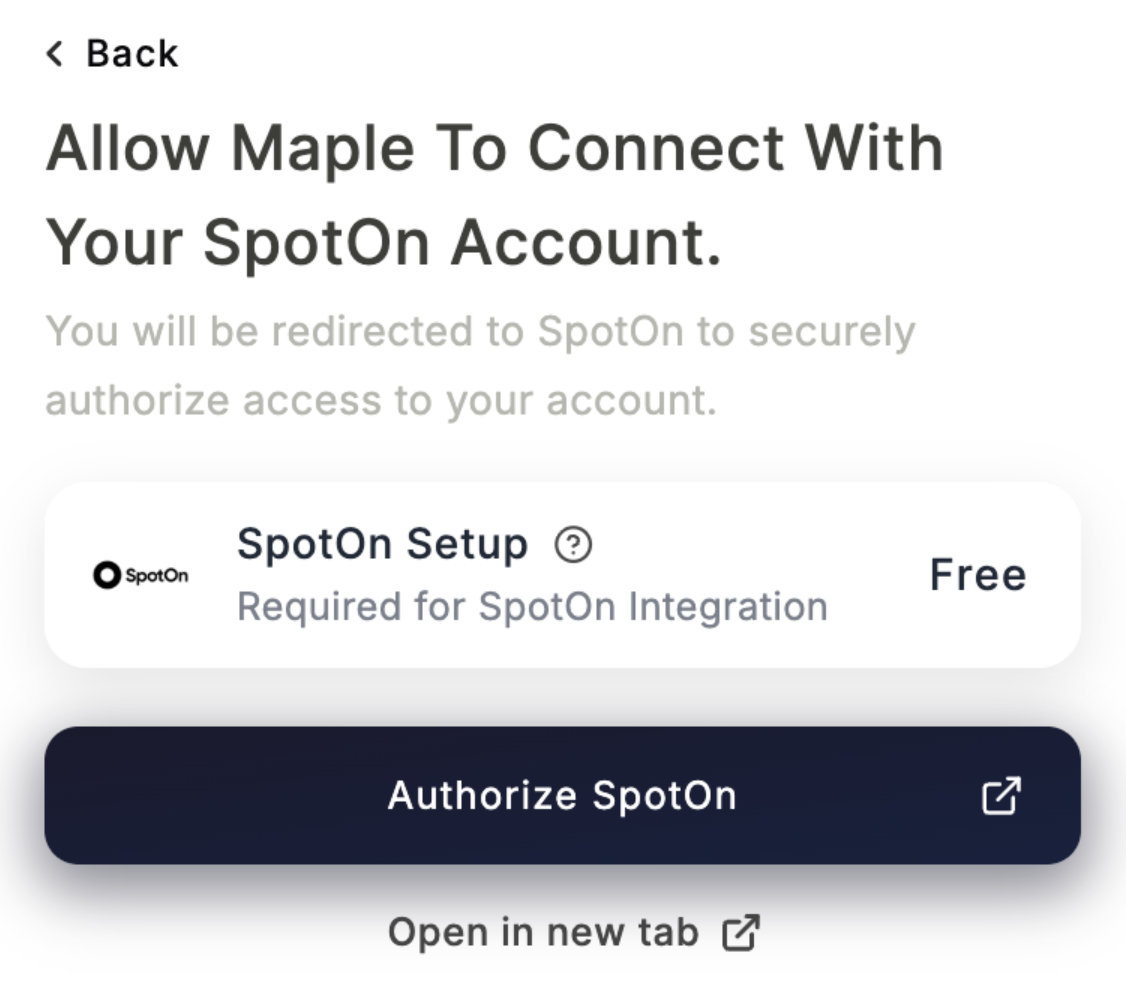
Authorize Maple to access your SpotOn system through OAuth. You’ll be redirected to SpotOn to approve the connection.
Select Location
Choose the SpotOn location to connect to this Maple location.Choose Menus
Choose which SpotOn menus Maple should sync, then activate the integration. Verify that items, modifiers, and prices imported correctly.
Test Integration
Place test orders to verify the full order flow from call to kitchen.
Connecting SpotOn
SpotOn uses OAuth for authorization:
-
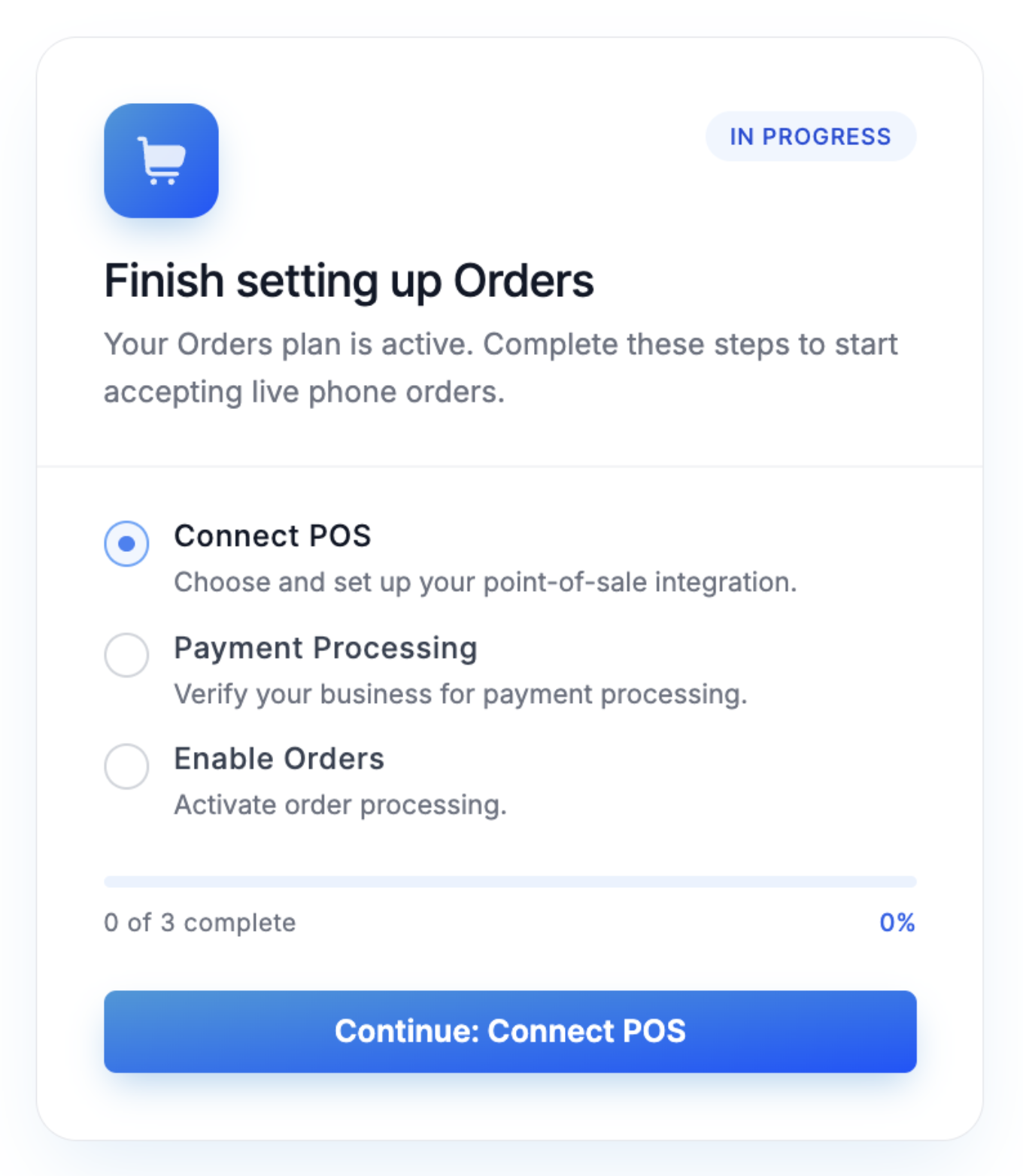
Click Orders in the sidebar, then Continue: Select POS on the Finish setting up Orders card (or open the location’s settings and go to Integrations)
-
Choose SpotOn, then click Continue With SpotOn
-
Click Authorize SpotOn
-
You’ll be redirected to SpotOn’s login page
-
Sign in with your SpotOn Dashboard credentials (not your SpotOn POS login) and approve Maple’s access
-
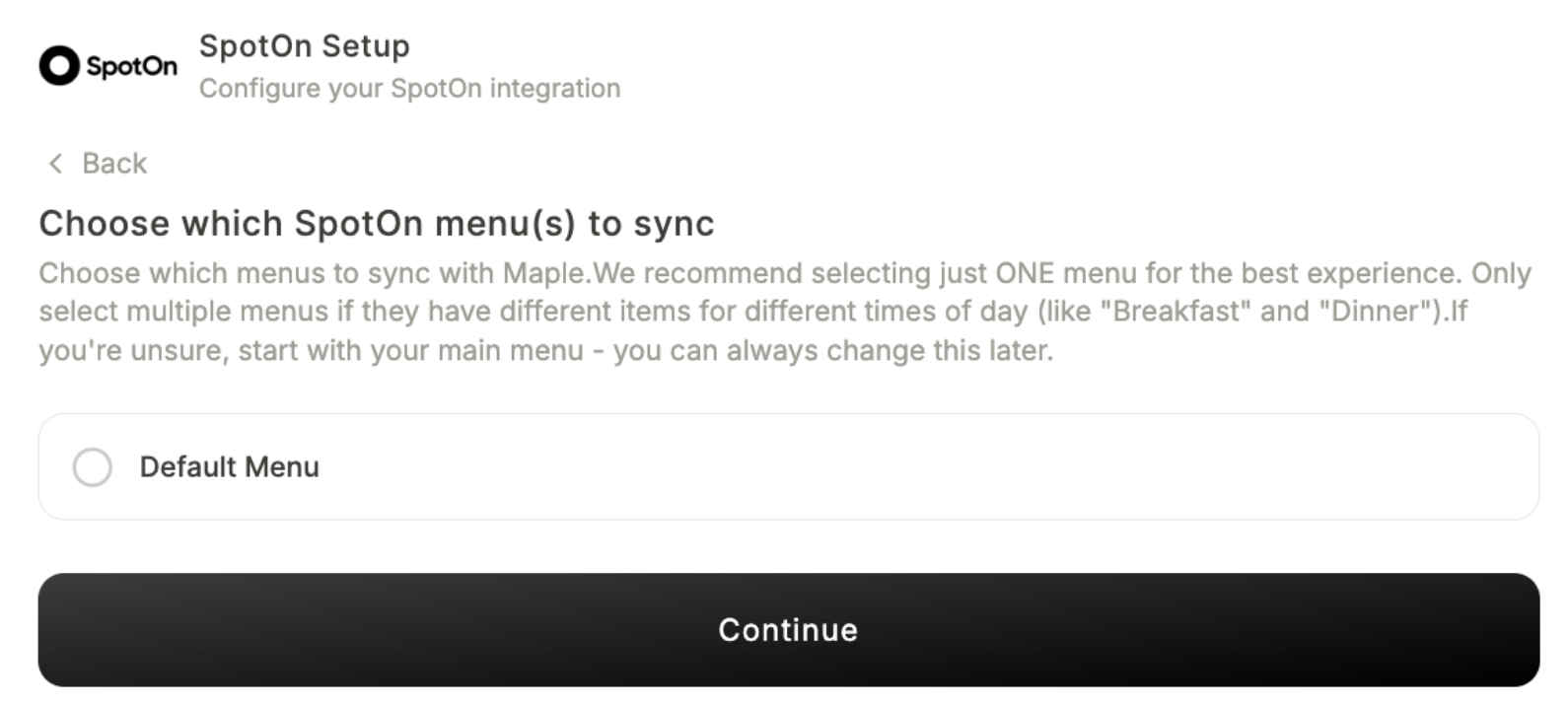
On Choose which SpotOn menu(s) to sync, select your menus and click Continue. One primary menu is recommended unless your menus are split by daypart. You can change this later under Integrations → SpotOn Connection → Edit Selection.
-
Wait 5–10 minutes for the menu to sync, then check items and prices on the Menus page
-
Once SpotOn shows Connected, tell your onboarding specialist. They check payment processing, help you click Confirm Enable Orders, and run a live test call with you.
Menu Synchronization
Your SpotOn menu syncs automatically to Maple:
- ✅ All menu items and prices
- ✅ Modifiers and option groups
- ✅ Categories and organization
- ✅ Item availability updates
- ✅ Price changes
Payment Processing
SpotOn integration uses CyberSource for payment processing:
- Credit/debit card support
- Secure tokenized transactions
- PCI-compliant processing
- Cards are charged in US dollars
Payment Rules
| Order Type | Payment Options |
|---|---|
| Pickup | Card required upfront |
| Delivery | Card required upfront |
SpotOn needs a full delivery address (street, city, state and ZIP code). Delivery orders with an incomplete address are rejected.
Order Management
Maple orders appear in SpotOn as:
- Source: Maple
- Standard SpotOn order format
- Full reporting integration
- Kitchen display compatible
Order Flow
- Customer places order via Maple (phone or SMS)
- Order appears in SpotOn immediately
- Kitchen receives the order via display or printer
- Standard SpotOn workflow applies
Multi-Location Support
For restaurants with multiple locations:
- Configure each location separately
- Different menus per location
- Location-specific pricing
- Centralized reporting available
Troubleshooting
Menu items not syncing
- Verify items are active in SpotOn
- Check visibility settings
- Wait 5-10 minutes for sync to complete
- Missing items usually come from the menu setup on your POS, so contact SpotOn Support
Nothing happens after Continue With SpotOn
A popup blocker stopped the SpotOn window. Allow popups for Maple in your browser and click Continue With SpotOn again.
Sign-in fails, or your location isn't listed
Sign in with your SpotOn Dashboard account, not your SpotOn POS login. If your location isn’t listed, the email you signed in with has no Dashboard user for that location. Create one for each location (guide), then try again.
Orders not appearing in SpotOn
- Confirm the integration is active in the Maple dashboard
- Check that SpotOn is online
- Verify the correct location is selected
- Review error logs in the dashboard
Payment failures
- Verify payment settings are configured correctly
- Check processor status
- Review decline reasons in the dashboard
- Confirm customer card details are valid
OAuth connection expired
- Open the location’s settings, go to Integrations, and choose Reconnect next to SpotOn
- Approve Maple’s access again
Support
- SpotOn Support: Contact your SpotOn representative
- Maple Support: Text +1 929 543 0229